If you want to create your own website using professionally designed and intuitive template-based tool, you can activate our Website Builder by clicking here.
Once redirected to the order form, follow the steps below depending on your case:
I. Activate Website Builder for a domain name I already own
(follow these steps if you have already registered your domain name)
II. Activate Website Builder and register a new domain name
(follow these steps if you do not have a domain name yet and would like to register one for your new website)
I. Activate Website Builder for a domain name I already own
Step 1. Type your domain name in the Get Started search bar and click the search icon
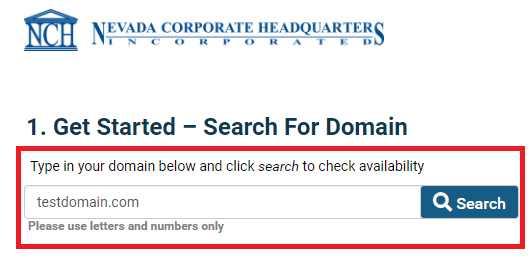
The search results will display if the domain name is already taken under the Search Results menu.
You can click on the "Use My Domain" button in order to add your existing domain to the order.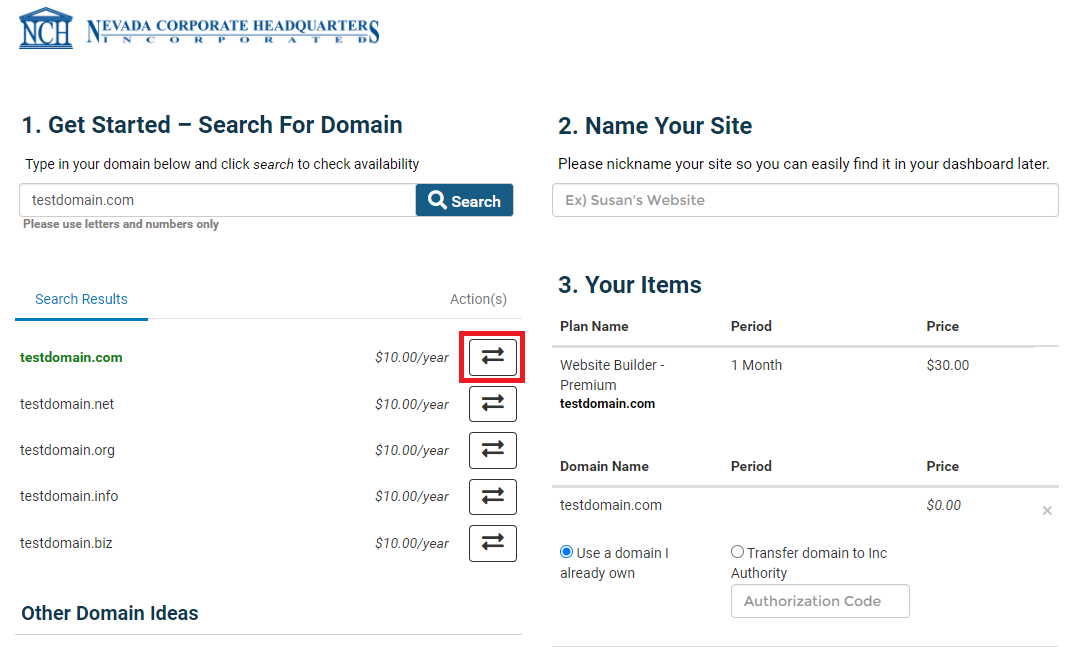
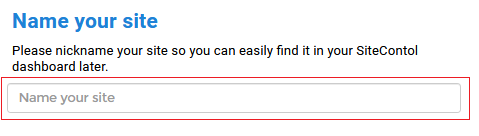
Step 2. Give your website a nickname.
This name will only be used for easier management in your control panel dashboard. You can use something simple like "My First Website" or "The Coffee Shop Site".
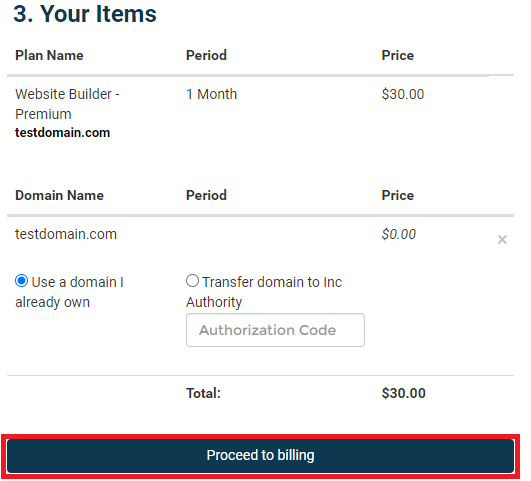
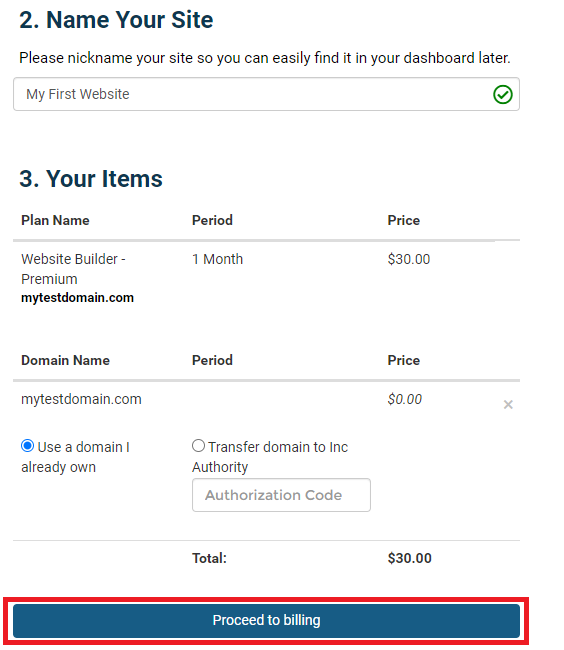
Step 3. The Order Summary section will give you the option to select that you already own the domain name. Once you review the details, click Proceed to Billing to continue with the order process.
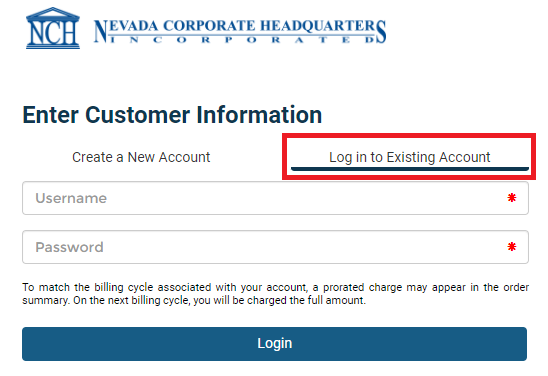
Step 4. Fill in your Customer Information
If you are creating a new account, fill in your Contact and Billing Information and set up your account credentials.
If you have an existing Web Services account, select the respective option and log in with your username and password.
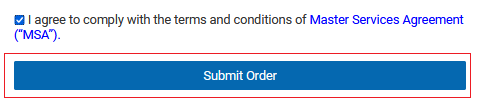
Step 5. Review your Order Summary, check the box to agree with the terms and conditions and click the Submit Order button.
If the order is processed successfully, you will see the Order Summary screen and you will receive a welcome email for your Website Builder product with some useful details that will help you get started with building your new website.
II. Activate Website Builder and register a new domain name
Step 1. Enter the domain name you would like to register in the Get Started section and click the search icon.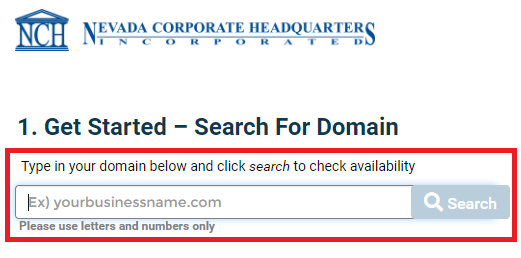
A domain name is the online address of your website. This is what people will type in the web browser to find your business. To learn more about domains and some useful tips for registering a good domain name for your company, please visit this page.
The search results will be displayed below the search bar:
a) If the domain name you typed in is available, it will be added to your current order. You can also click on the button "Add Domain"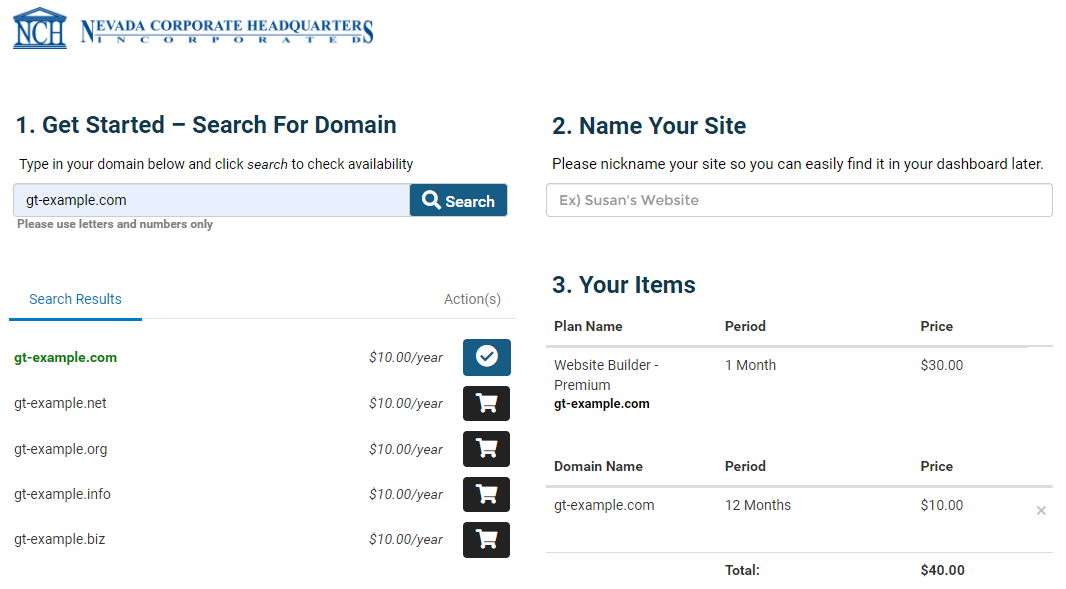
b) If the domain you searched for is already registered, you will see a button "Use my own domain". You will also see alternative suggestions and other domain ideas you can choose from. If you like any of them, click on the shopping cart icon to add them to your order. Alternatively, perform a new search for a different domain.
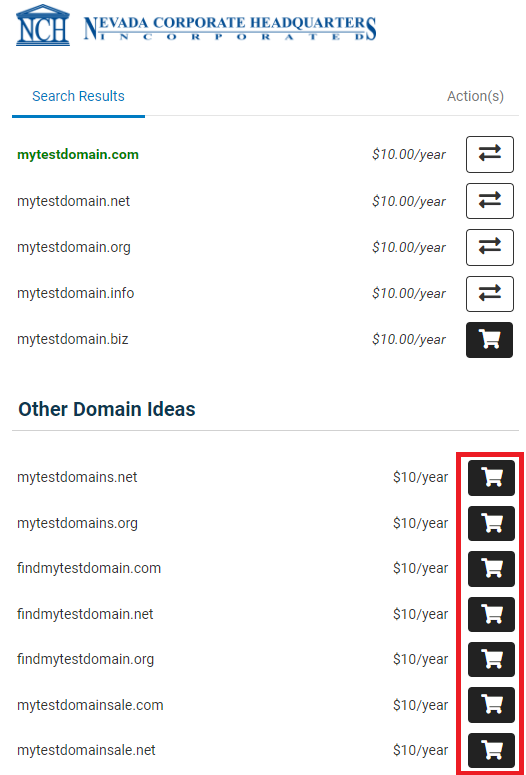
Step 2. Give your website a nickname.
This name will only be used for easier management in your control panel dashboard. You can use something simple like "My First Website" or "The Coffee Shop Site".
Step 3. Check your Order Summary and click Proceed to Billing to continue with the order process.
Step 4. Fill in your Customer Information
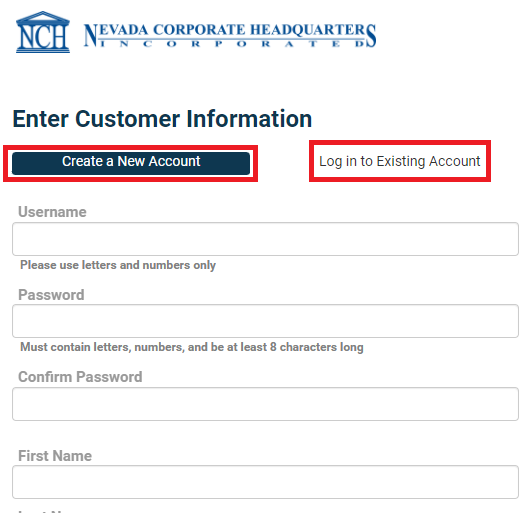
If you are creating a new account, fill in your Contact and Billing Information and set up your account credentials.
If you have an existing Web Services account, click on the "Log in to existing account" option and log in with your username and password.
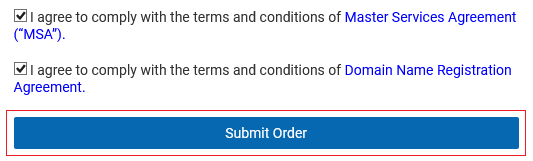
Step 5. Review your Order Summary, check the boxes to agree with the terms and conditions and click the Submit Order button.
If the order is processed successfully, you will see the Order Summary screen and you will receive an email with your SiteControl login credentials. SiteControl is the portal you will use to access and manage your Inc Authority domain name and website services.
You will also receive a welcome email for your Website Builder product with some useful details that will help you get started with building your new website.
If you have any questions or need further assistance, feel free to contact us at 1-866-521-5464 or email us at support@nchweb.com.
Comments
0 comments
Article is closed for comments.